Hey everyone, let’s cut to the chase: as someone who’s spent the last 8 years running a small, dedicated wireless AP supply shop, I get tons of DMs, calls, and even random texts that start with the same question—“Can I use a wireless AP with my existing router?” If you’re staring at your clunky old router (you know, the one that still works but cuts out when you’re on your back patio or your teen’s gaming rig is hogging 4K streams) you’ve probably wondered this too. Spoiler: The answer is almost always YES, but there’s a lot of little details that make or break if it works, and I’ve seen so many people mess this up just because they skipped 5 minutes of basic setup. Wireless APs
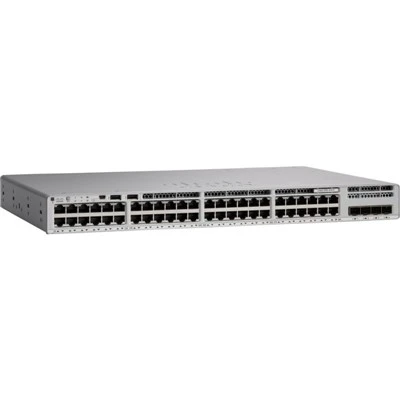
First, let’s break down why you’d even want to add a wireless AP to your router in the first place. Your existing router was probably built for basic stuff: a few phones, a laptop, maybe a smart TV when it launched. Now you’ve got 10+ smart devices, a home office setup, a backyard Wi-Fi camera, and that gaming PC that won’t connect fast enough to load a game without lag. Routers have two jobs these days: they handle your internet connection from the modem, and they broadcast Wi-Fi for your devices. The problem? Doing both at once means it’s stretched thin—like trying to fold laundry and answer work emails at the same time, badly. A wireless AP takes the Wi-Fi broadcasting job off your router’s plate entirely, so your router just focuses on moving internet from the modem, and the AP blasts a strong, clean signal where your router can’t reach. It’s way cheaper than replacing your whole router, too—most good APs cost half what a mid-range router runs, and way less than a mesh system if you only have a dead zone or two.
But wait, why can’t you just plug any random AP into your router and call it a day? Let’s talk about the big “gotchas” people run into. The first, and most common mistake, is IP address conflict. Your router has a built-in system that assigns every device a unique number (that’s the IP, like your home’s Wi-Fi address) to keep everything talking. Most wireless APs come from the factory set to use the same range as your router—so if your router hands out IPs starting with 192.168.1.x, the AP is probably set to 192.168.1.x too. When you plug both in, they fight over who gets to assign IPs, and suddenly your laptop says “no internet” even though the lights are green. I’ve had a guy call me panicking at 10PM because he tried to add an AP for his stream setup, and his whole home network crashed—turns out he didn’t change the AP’s IP range. Fixing that is easy, though: once you plug the AP into a spare ethernet port on your router, you just log into the AP’s settings (most have a sticker on the bottom with a tiny URL and password) and change the last number of the IP to something outside your router’s range. Like, if your router goes up to 192.168.1.100, set your AP to 192.168.1.101. No more fights, simple.
Next up: mode of operation. A lot of people don’t realize that APs aren’t all made the same. Some are “fat APs,” which are basically standalone routers with built-in Wi-Fi, and some are “thin APs,” which are designed to work with a controller (usually for offices or big homes). If you’re a regular homeowner, a thin AP is overkill—you just need a standalone wireless AP that’s set to “access point mode,” not “router mode.” If you set it to router mode by accident, you’ll end up with two separate Wi-Fi networks (like “YourHouse” and “YourHouse_2.4G”) that don’t talk to each other, and you can’t print from your laptop to your printer because they’re on different networks. That’s another super common mess-up. Just double-check the quick start guide when you unbox your AP—if it says “set to AP mode” you’re good; if it says “set to router mode” flip that toggle before you plug it in, or it’ll cause problems.
Then there’s the ethernet cable thing. Wait, no, not just any ethernet cable. Most APs need a gigabit ethernet port to keep up with fast internet. If your old router only has 10/100 ethernet ports (the ones that only light up yellow when you plug something in, not green or orange full blast), you might bottleneck your AP. I always recommend a Cat5e or Cat6 cable—they’re like $5 for a 10ft one at any hardware store, and they handle way more data than the old Cat3 stuff from 20 years ago. A lot of people try to use the flimsy cable that came with their old router, and wonder why their AP feels slow—bad cable = bad performance, plain and simple.
Another big one: 2.4GHz vs 5GHz bands. Your router probably broadcasts both, right? 2.4GHz goes farther through walls, but it’s slower and more crowded (your neighbor’s Wi-Fi, microwaves, even baby monitors use it). 5GHz is faster, but it drops off after 30 feet, and walls kill it. A lot of modern wireless APs have dual-band radios, so they broadcast both bands, but you can tweak them. If your dead zone is a small home office on the second floor, set the AP to prioritize 5GHz for your devices that need speed. If it’s a backyard patio where you’re watching a movie, set it to 2.4GHz so the signal reaches farther. Pro tip: turn off the “auto band steering” if you’re having issues—sometimes it’ll kick your device to 5GHz when you’re too far away, and the signal cuts out completely. Just pick the right band for where you’re using the AP, it’ll work way better.
Wait, what about Wi-Fi 6 vs Wi-Fi 5? If your router is old, it might be Wi-Fi 5, and your AP could be Wi-Fi 6. Will that work? Yep, it just means the Wi-Fi 6 AP will backwards-compatible with your router, so your old devices (like that 5-year-old smart fridge) still connect fine, and your new phones/laptops will get the faster Wi-Fi 6 speed where the AP is. I always recommend Wi-Fi 6 APs now—they’re not that much more expensive, and they handle multiple devices way better than Wi-Fi 5, especially if you’re into gaming or streaming. I once had a customer with 12 smart devices, a PS5, two laptops, and a 4K security system all connected to a Wi-Fi 5 AP—he complained his stream kept freezing, switched to a Wi-Fi 6 AP, and hasn’t had an issue since. Worth the extra $20, easy.
Let’s also talk about when this won’t work, just to set expectations. If your router is 10+ years old, like the one that came with your first fiber internet from 2013, it might not have enough spare ethernet ports, or its firmware is too outdated to talk to a modern AP. In that case, it’s not the AP’s fault—it’s your router that’s holding you back. But even then, most of the time you can replace just the router’s firmware (if it lets you) or upgrade the router if you have to, instead of tossing your whole setup. Another time it won’t work: if your home has super thick stone walls or multiple floors with concrete ceilings. A single AP might not cover that, but you can use multiple APs (they work together with the same SSID and password) or a mesh network, but that’s a whole other story.
Now, here’s the part I get asked almost as much: “How do I set this up without messing everything up?” It’s actually way simpler than you think, and I’ve got a quick 3-step process that works for 90% of home users. First, pick a spot for your AP halfway between your router and your dead zone, not too close to a wall or a microwave. Second, plug the AP into a spare gigabit ethernet port on your router, not the modem—important! The modem is for internet from your provider, the router is for your home network. Third, log into your AP’s settings, change the IP range if needed, set it to AP mode, and make sure the SSID (that’s your Wi-Fi name) matches your main router. That last part is key—if your AP has a different Wi-Fi name, you’ll have to switch between two networks, which is a pain. Make them the same, and your phone will automatically connect to the strongest one, no extra work.
I’ve also seen people ask if they can use a wireless AP without a modem? Wait, no—modem is what connects your home to the internet, router (and AP) is what broadcasts that internet to your devices. So you can’t skip the modem, but adding an AP lets you get that internet to parts of your house your router can’t reach. Another myth busted: some people think APs are just for big offices, but no—half my customers are small homeowners with dead zones in their laundry room or garage, they just want to stream a movie out there without buffering. That’s exactly what APs are for.
At the end of the day, adding a wireless AP to your existing router is one of the easiest, cheapest upgrades you can do for your home network. You don’t have to replace your whole router, you don’t have to be a tech genius, and it’ll fix 90% of common Wi-Fi issues. But if you’re still on the fence, or you’re worried about picking the right AP for your setup, hit me up—we work with a ton of different wireless APs, we can help you figure out exactly what you need, no jargon, no upsells. We just want you to have a strong, reliable Wi-Fi that works everywhere in your house, no hassle.
Before I wrap up, let’s recap the main points so you don’t forget: Yes, you can almost always use a wireless AP with your existing router. Just watch for IP conflicts, make sure it’s set to AP mode (not router mode), use a good ethernet cable, match your SSID to your main router, and pick the right band for your dead zone. If you run into issues, don’t stress—most problems are super easy to fix, and if not, we’re here to help you pick the perfect AP for your space. We don’t do complicated office-only gear, we make APs for regular people who just want their Wi-Fi to stop cutting out during game night.

If you’re ready to upgrade your Wi-Fi, or just have a quick question about what’ll work for your setup, reach out to us to discuss your procurement needs. We’ll walk you through every step, no pressure, just straight talk about what’ll work best for your home.
Routers for Aruba References
- Wi-Fi Alliance. (2023). Wi-Fi 6 Technology Overview.
- Cisco Meraki. (2022). Wireless Access Points: Home vs. Office Deployment Guide.
- Federal Communications Commission. (2021). Home Wi-Fi Setup Best Practices.
AITI Tech Limited
AITI Tech Limited is one of the most professional wireless aps suppliers for over 20 years, featured by quality products and good price. Welcome to buy bulk high-grade wireless aps in stock here from our company. If you have any enquiry about pricelist, please feel free to email us.
Address: 6F, Haogong Building, Yannan Road, Futian District, Shenzhen, China
E-mail: require@hkaiti.com
WebSite: https://www.hkaiti.com/
